TL;DR
Three ideas before you begin
- Load only a traceable extracted directory
- Confirm the extension is enabled and pinned before use
- Record browser, version, and time for session issues
Before you start
Prepare the inputs
- Update Chromium and create a work profile
- Download the package from the current RelayX delivery entry
- Sign out of unrelated sites and save unfinished work
Step 1
From “Verify package source and integrity” to “Identify the correct load folder”
To produce “A Similarweb extension setup with verified location, permissions, and launch path”, make “Verify package source and integrity” and “Identify the correct load folder” a reviewable starting point. Every later filter and judgment should preserve this scope.
- 1.1
Verify package source and integrity
Keep the original filename and download time and extract fully; do not use modified third-party packages or scatter files across folders.
- 1.2
Identify the correct load folder
The target folder must directly contain manifest.json; if the outer folder contains only another folder, go one level deeper.

Select the directory that directly contains the manifest, not the outer archive folder. Markers- 1 Load unpacked
- 2 Developer mode
Enable Developer mode only for a trusted and complete local package. Select the directory that directly contains the manifest file when loading.
Source: Chromium extensions management page
You can identify the download source, version, and manifest directory.
Step 2
“Load and check enabled state”, then “Review permissions and pin the entry”
Keep only the evidence needed for “Load and check enabled state” and “Review permissions and pin the entry”. Record why each filter changes so the result remains reproducible instead of becoming an unexplained screenshot.
- 2.1
Load and check enabled state
Enable Developer mode at chrome://extensions, load the folder, and confirm the card has no red errors and is enabled.
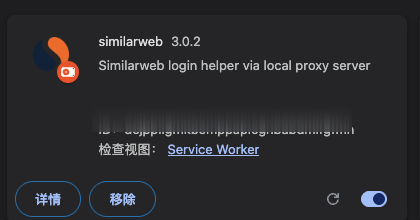
Use the version, runtime state, and enabled toggle to confirm the extension loaded successfully. Markers- 1 Extension version
- 2 Open details
- 3 Reload
- 4 Enabled state
A successful installation shows the name, version, and enabled toggle. Record the version and Service Worker state before reloading. The extension ID is blurred.
Source: Chromium extensions management page - 2.2
Review permissions and pin the entry
Check that site access matches product documentation, then pin the icon from the extensions menu so it is not mistaken for missing.
The extension card is error-free, permissions are explainable, and the icon is visible.
Step 3
“Run one minimal launch test” and “Collect diagnostics by error type”
Do not stop at tool output. Use “Run one minimal launch test” and “Collect diagnostics by error type” to verify quality, limitations, and ownership so “A Similarweb extension setup with verified location, permissions, and launch path” becomes actionable.
- 3.1
Run one minimal launch test
Open the service from the official RelayX dashboard entry and confirm extension state, target tab, and session result.
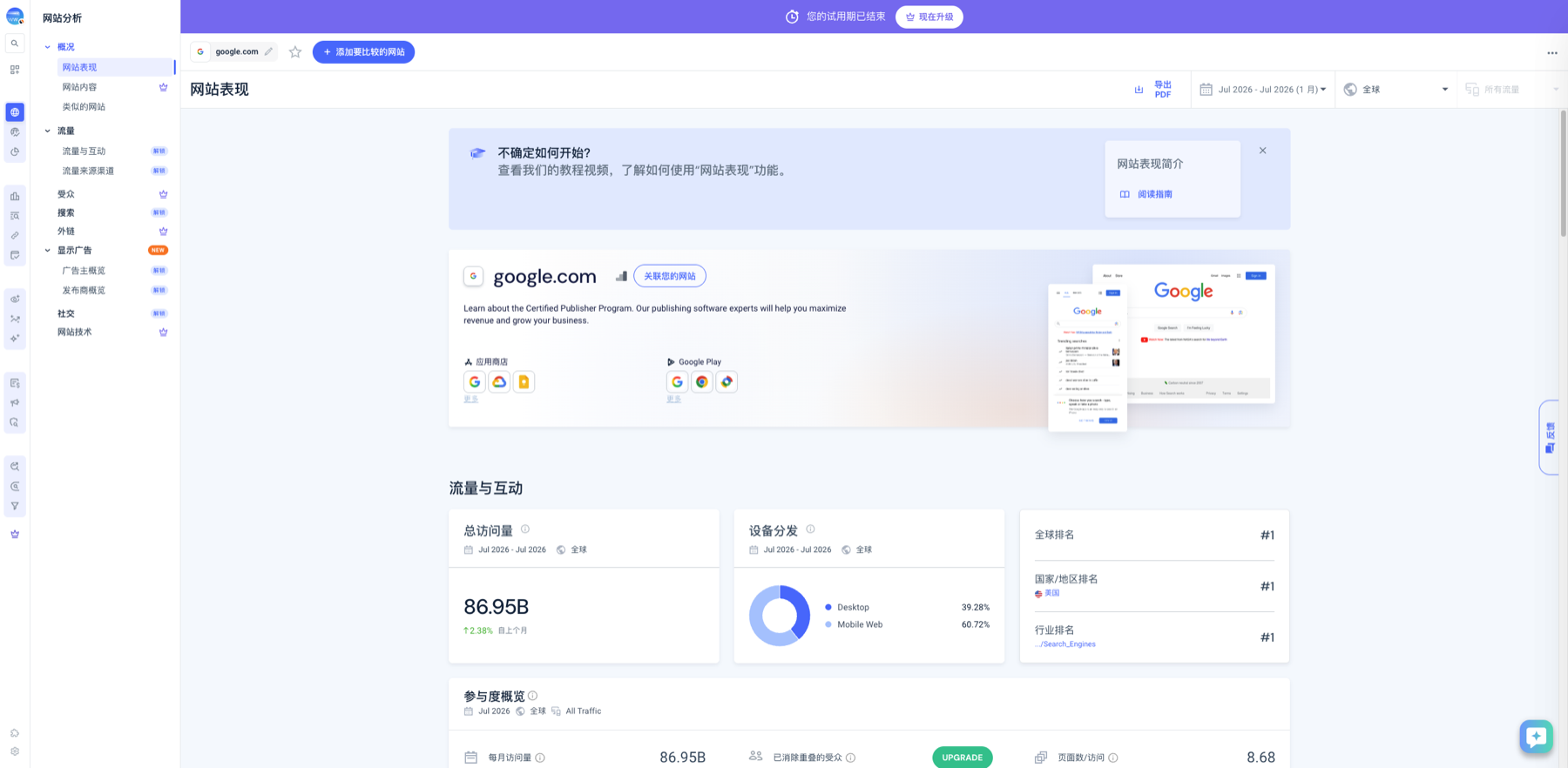
A successful launch test should open the real Website Performance view with filters and metrics. Markers- 1 Current domain
- 2 Date range
- 3 Geography
- 4 Visits baseline
Website Performance is the report overview. Lock the domain, date, geography, and traffic scope before reading visits, device mix, and engagement. These are modeled estimates, so prioritize trends.
Verify source: Similarweb website performance interface - 3.2
Collect diagnostics by error type
Record browser version, extension version, time, error, and reproduction steps; disable a suspicious extension first and never submit passwords, cookies, or tokens.
The launch path is verified, or the support report is complete and contains no sensitive credentials.
WHO · HOW · WHY
How this guide was written and reviewed
- Who
- Independently written and manually reviewed by the RelayX Editorial Team, with update and capture dates shown on the page.
- How
- Use least privilege, recoverable actions, and current product state as the baseline. Verify source, version, backup, and rollback paths before installing, authorizing, or deleting anything.
- Why
- The goal is not to restate product features but to help you produce “A Similarweb extension setup with verified location, permissions, and launch path”. The workflow is organized around that outcome with checkpoints, limitations, and next actions.
Interface captures come from official accessible product pages or the current browser interface. Each appears under its matching step with numbered controls and data points. When real functional UI cannot be publicly verified, the guide says so instead of using a marketing homepage as filler. No third-party tutorial text or imagery is reused; third-party brands and interface rights remain with their respective owners.