
TL;DR
Three ideas before you begin
- Discover apps by job rather than filling the device from rankings
- Check permissions, compatibility, and data location before installing
- Remove low-use apps and manage device slots regularly
Before you start
Prepare the inputs
- List the three specific jobs you most want to solve
- Confirm Mac and iOS device counts and system compatibility
- Review subscription coverage and device rules
Step 1
From “Write needs as job statements” to “Check plan and device scope”
To produce “An app-management plan organized by jobs, device slots, and periodic cleanup”, make “Write needs as job statements” and “Check plan and device scope” a reviewable starting point. Every later filter and judgment should preserve this scope.
- 1.1
Write needs as job statements
Use statements such as “remove duplicate photos weekly” or “sign PDFs” instead of the vague request “find productivity apps.”
- 1.2
Check plan and device scope
Confirm whether the plan covers Mac, iOS, or both, and record available slots and old devices to remove.
Three target jobs, supported devices, and slot limits are clear.
Step 2
“Compare a small set per job”, then “Test with a small real task”
Keep only the evidence needed for “Compare a small set per job” and “Test with a small real task”. Record why each filter changes so the result remains reproducible instead of becoming an unexplained screenshot.
- 2.1
Compare a small set per job
Read app descriptions, update history, permissions, and data handling, and trial only two or three candidates for each job.
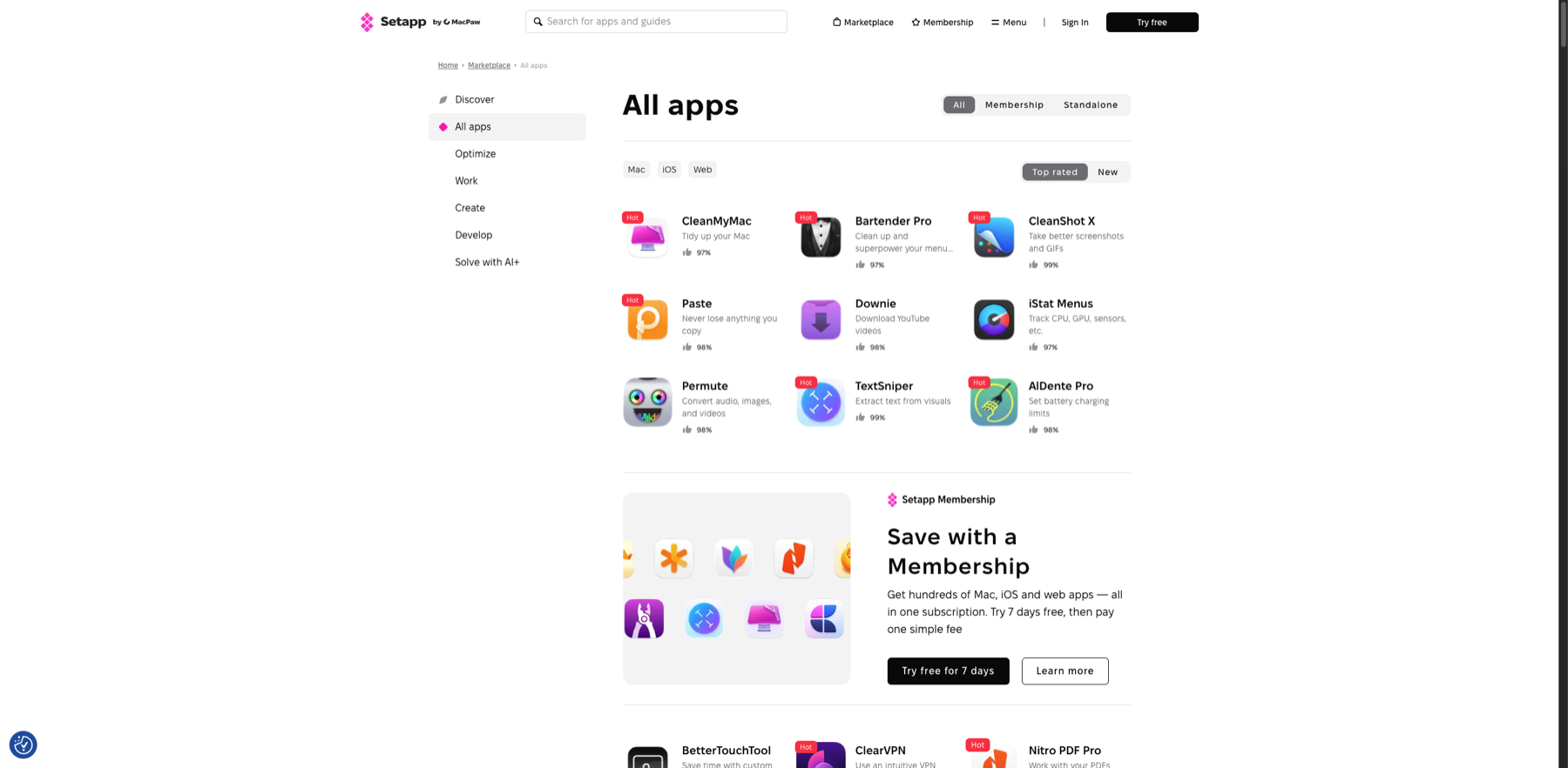
Filter a small candidate set by task and device instead of choosing directly from popularity. Markers- 1 Task category
- 2 Device filter
- 3 Membership type
- 4 Sort order
Narrow by task category, then filter device and membership type. The catalog discovers candidates; a real small task still verifies compatibility, data handling, and result quality.
Verify source: Setapp official app catalog - 2.2
Test with a small real task
Use non-critical data to complete one end-to-end workflow and record time, output quality, learning effort, and residual files.
Every target job has one preferred app validated with a real task.
Step 3
“Organize sign-in, data, and defaults” and “Review apps and devices monthly”
Do not stop at tool output. Use “Organize sign-in, data, and defaults” and “Review apps and devices monthly” to verify quality, limitations, and ownership so “An app-management plan organized by jobs, device slots, and periodic cleanup” becomes actionable.
- 3.1
Organize sign-in, data, and defaults
Confirm where app data is stored, cloud sync status, and default handlers so work is not lost during removal or migration.
- 3.2
Review apps and devices monthly
Review monthly usage, remove low-value apps, revoke unneeded permissions, and free inactive device slots.
The device retains only apps solving a defined job, with explainable permissions and active use.
WHO · HOW · WHY
How this guide was written and reviewed
- Who
- Independently written and manually reviewed by the RelayX Editorial Team, with update and capture dates shown on the page.
- How
- Use least privilege, recoverable actions, and current product state as the baseline. Verify source, version, backup, and rollback paths before installing, authorizing, or deleting anything.
- Why
- The goal is not to restate product features but to help you produce “An app-management plan organized by jobs, device slots, and periodic cleanup”. The workflow is organized around that outcome with checkpoints, limitations, and next actions.
Interface captures come from official accessible product pages or the current browser interface. Each appears under its matching step with numbered controls and data points. When real functional UI cannot be publicly verified, the guide says so instead of using a marketing homepage as filler. No third-party tutorial text or imagery is reused; third-party brands and interface rights remain with their respective owners.