
TL;DR
Three ideas before you begin
- Permissions must match the core function
- Package, version, and source must be verifiable
- When something looks wrong, disable first, preserve details, and contact support
Before you start
Prepare the inputs
- Use a supported and up-to-date Chromium browser
- Obtain extension packages only through the current RelayX delivery entry
- Prepare a separate browser profile for work
Step 1
Understand permissions before accepting
Browsers often describe permissions broadly. Map each permission to a specific extension function.
- 1.1
Distinguish site, tab, and storage permissions
Site permissions determine where the extension runs; tab permissions commonly support current-page state; storage supports local settings. Follow the current install prompt and documentation.
- 1.2
Map permissions to functions
If a permission does not clearly relate to the declared login, authorization, or page-interaction function, pause installation and ask support.
- 1.3
Watch for permission changes
If an update asks for new permissions, review the release notes again instead of accepting automatically because an older version was trusted.
You should be able to explain in one sentence why every permission is needed for the current function.
Step 2
Verify source, version, and install directory
Many installation risks come from unknown sources, replaced files, or loading the wrong directory.
- 2.1
Use the current delivery entry only
Download only from RelayX order, product, or help entry points. Do not use same-named files forwarded through chats, drives, or unknown email.
- 2.2
Load the correct extracted directory
Extract fully, then select the directory that directly contains the manifest. Do not run from the archive or choose an empty parent folder.

Verify source and directory structure, selecting only the folder that directly contains the manifest. Markers- 1 Load unpacked
- 2 Developer mode
Enable Developer mode only for a trusted and complete local package. Select the directory that directly contains the manifest file when loading.
Source: Chromium extensions management page - 2.3
Record version and update time
After installation, verify name, version, and permissions in extension management and retain the download date for troubleshooting.
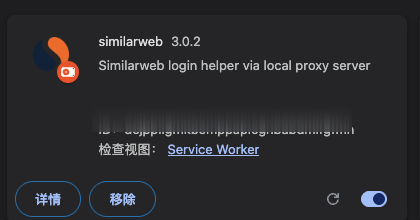
Record extension name, version, runtime state, and update time for troubleshooting. Markers- 1 Extension version
- 2 Open details
- 3 Reload
- 4 Enabled state
A successful installation shows the name, version, and enabled toggle. Record the version and Service Worker state before reloading. The extension ID is blurred.
Source: Chromium extensions management page
You can trace the extension to a RelayX page, download date, and current version.
Step 3
Separate work sessions from personal browsing
Limiting extension use to a separate browser profile reduces mistakes and unnecessary exposure.
- 3.1
Create a separate browser profile
Do not load work extensions into the primary profile holding personal email, payment data, and private accounts.
- 3.2
Open only task-relevant pages
Close unrelated tabs while using the extension, then sign out of target sites and clear the session according to platform guidance.
- 3.3
Never share personal credentials
Normal RelayX delivery should not require sending personal account credentials to strangers. Stop immediately if asked.
Work extensions, target sites, and personal browsing data should reside in clearly separated profiles.
Step 4
Maintain updates and least-privilege habits
Security is not a one-time install check; the same boundaries must hold on every use.
- 4.1
Keep browser and extension versions current
Update according to current RelayX guidance and avoid retaining multiple sources or old versions of the same extension.
- 4.2
Review the extension list regularly
Disable or remove extensions no longer used and look for similarly named items from unknown sources.
- 4.3
Do not bypass browser warnings
If the browser reports corruption, disablement, or unusual permissions, capture the message and contact support instead of repeatedly installing unknown files.
Only extensions still in use, from known sources, and with verifiable versions remain installed.
Step 5
Contain and report suspicious behavior
The first incident-response goal is to stop further exposure, then preserve enough information for diagnosis.
- 5.1
Disable the extension immediately
Do not continue clicking or enter sensitive data. Disable the extension and sign out of affected site sessions.
- 5.2
Preserve troubleshooting details
Record name, version, source, time, browser messages, and reproduction steps, but never paste passwords, cookies, or tokens into a support ticket.
- 5.3
Use the official support path
Submit the issue through RelayX help or order entry points and follow guidance on removal, update, or rebuilding the separate profile.
The extension is disabled, affected sessions are signed out, necessary details are recorded, and the issue is submitted through an official path.
WHO · HOW · WHY
How this guide was written and reviewed
- Who
- Independently written and manually reviewed by the RelayX Editorial Team, with update and capture dates shown on the page.
- How
- Use least privilege, recoverable actions, and current product state as the baseline. Verify source, version, backup, and rollback paths before installing, authorizing, or deleting anything.
- Why
- The goal is not to restate product features but to help you produce “An actionable safety checklist for before installation, daily use, and incident response”. The workflow is organized around that outcome with checkpoints, limitations, and next actions.
Interface captures come from official accessible product pages or the current browser interface. Each appears under its matching step with numbered controls and data points. When real functional UI cannot be publicly verified, the guide says so instead of using a marketing homepage as filler. No third-party tutorial text or imagery is reused; third-party brands and interface rights remain with their respective owners.